Staff Post-Training

Essential Knowledge for PGN:U Staff | Using 919

919 Menu Guide

Accessing the 919 Menu

To open the 919 menu, use the keybind (default PG DN). This will bring up the main dashboard where you can access various staffing tools.

This section documents what advisors can do on the first page of the 919 menu (Dashboard)

Page 1: Dashboard

Server Info Visible

  • Player Count
  • Uptime
  • Latency

Self Options

  • Revive Self
  • Feed Self
  • Go Back
  • Teleport to Marker
  • Clothing Menu
  • Clear Blood
  • Wet Clothes
  • Dry Clothes
  • Toggle Invisibility
  • Toggle Fast Run
  • Toggle God Mode
  • Toggle Super Jump
  • Toggle No Ragdoll
  • Toggle Infinite Stamina

Server Options

  • Revive All

Vehicle Options

  • Repair Vehicle
  • Fill Gas Tank
  • Wash Vehicle
  • Unlock Vehicle
  • Lock Vehicle

Use these actions responsibly and only when required for support, events, or active moderation needs.
Live Admin Chat

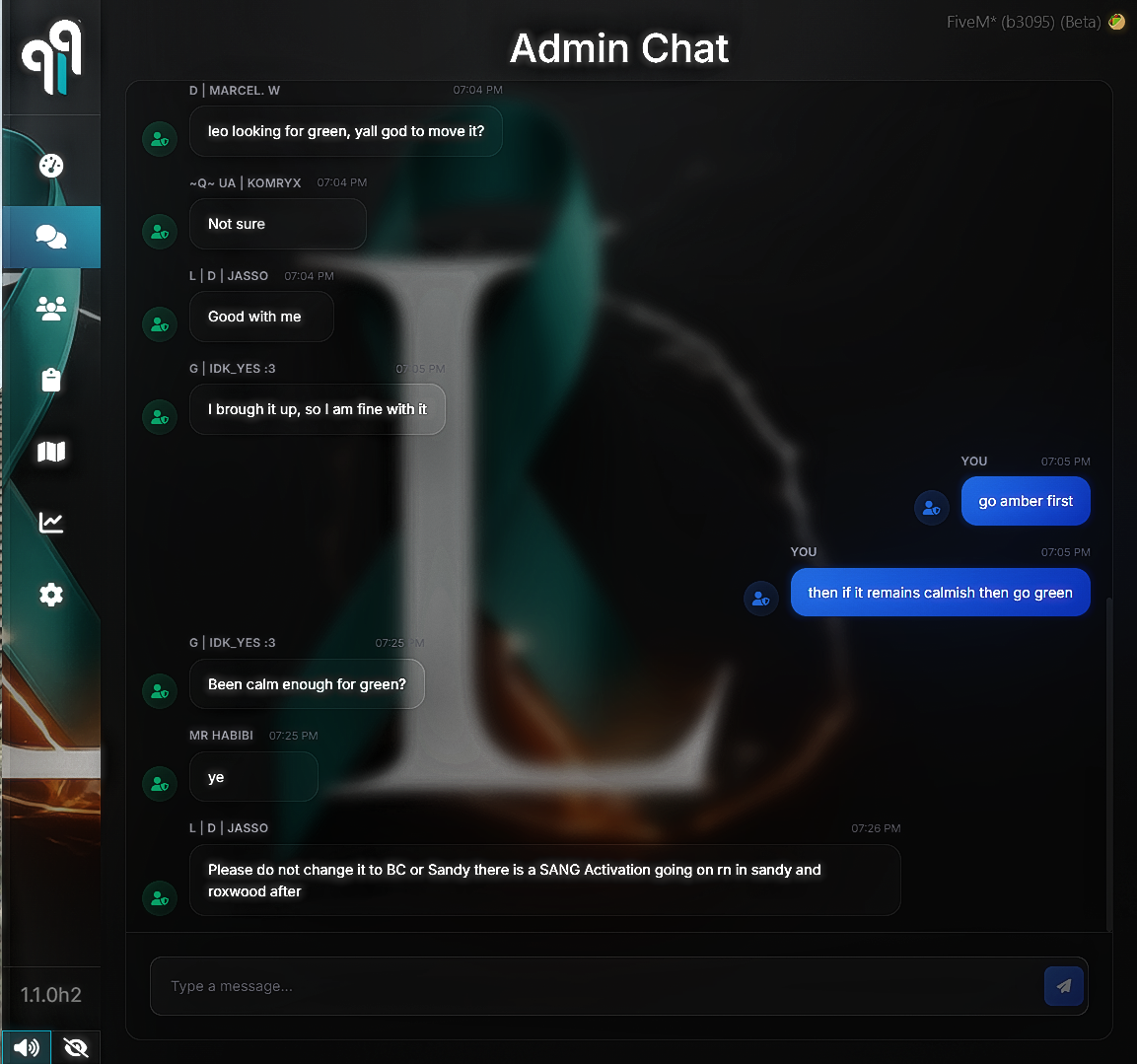
To access the admin chat, click the "Admin Chat" button in the menu. This will open a page in the menu where you can have live comunications with other staff members in game

Use the admin chat for coordinating with other staff, reporting issues, asking questions/support, and sharing important information.

Admin Chat screenshot

Player List

This is how you will manage players, issuing DA's, spectating, etc.

Initially:

When you open this page, it'll display all players in-game as follows:

Character Name (id) | Citizen ID | IGN | Connection

All staff in game will be highlighted yellow, so you can tell how many is on, and who is who.

Player Options:

When you click on a player from the playerlist, it'll display options and information for that player.

Information Displayed

  • Character Name
  • IGN
  • Citizen ID
  • Cash
  • Bank
  • Job
  • Gang
  • Phone
  • Player Health & Armour
  • Identifiers
  • Past DA's

Player Actions

  • Revive
  • Repair Vehicle
  • Goto
  • Bring
  • Send Back
  • Send to Location
  • Spectate
  • Screenshot
  • Live Stream
  • Cuff
  • Freeze
  • Warn

Notice: Do NOT mess with player's characters, there's a chance you can really mess things up. Make sure you get permission before doing anything high-stakes like that.

Reports

This section is currently broken and will be updated soon.

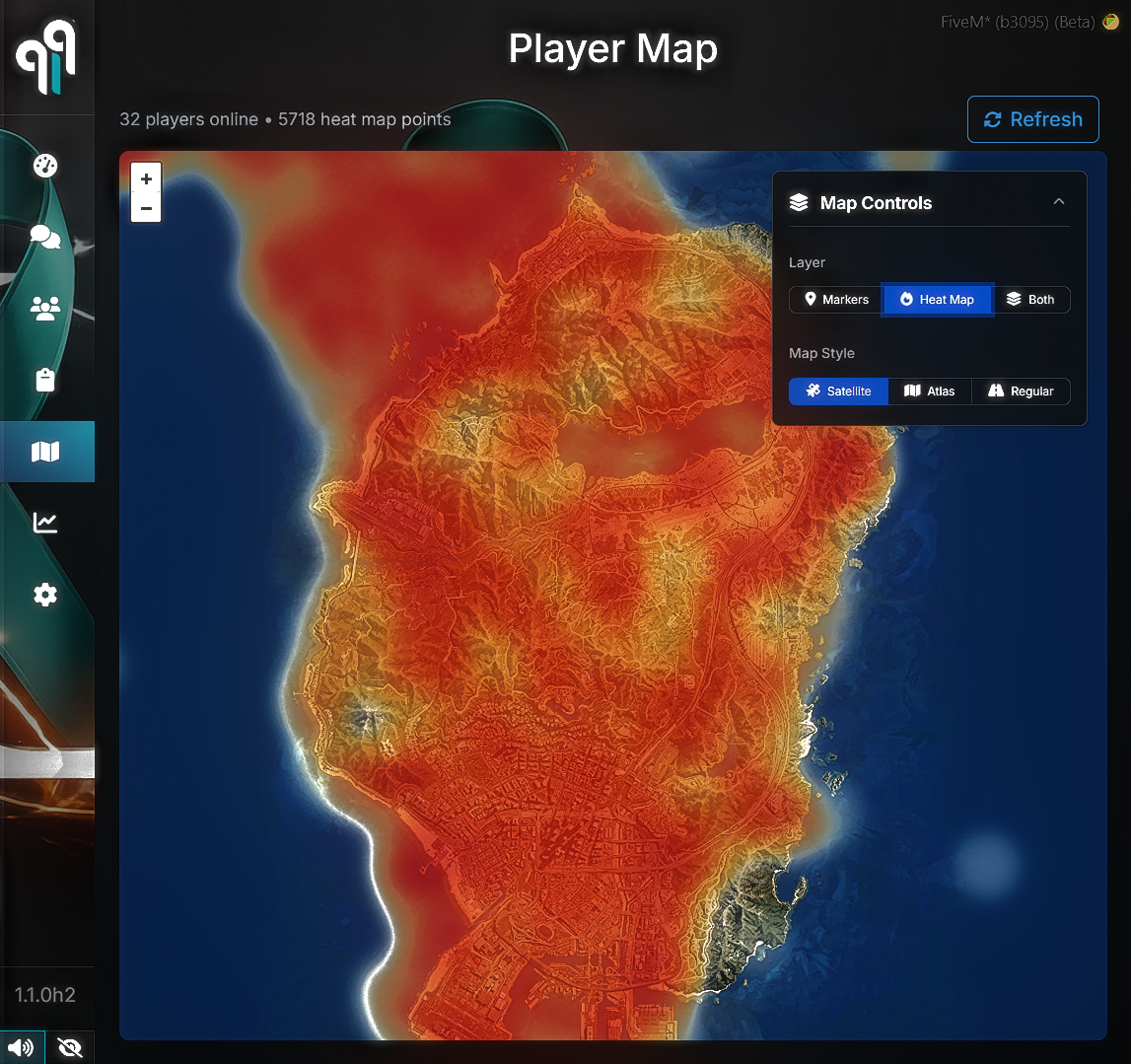
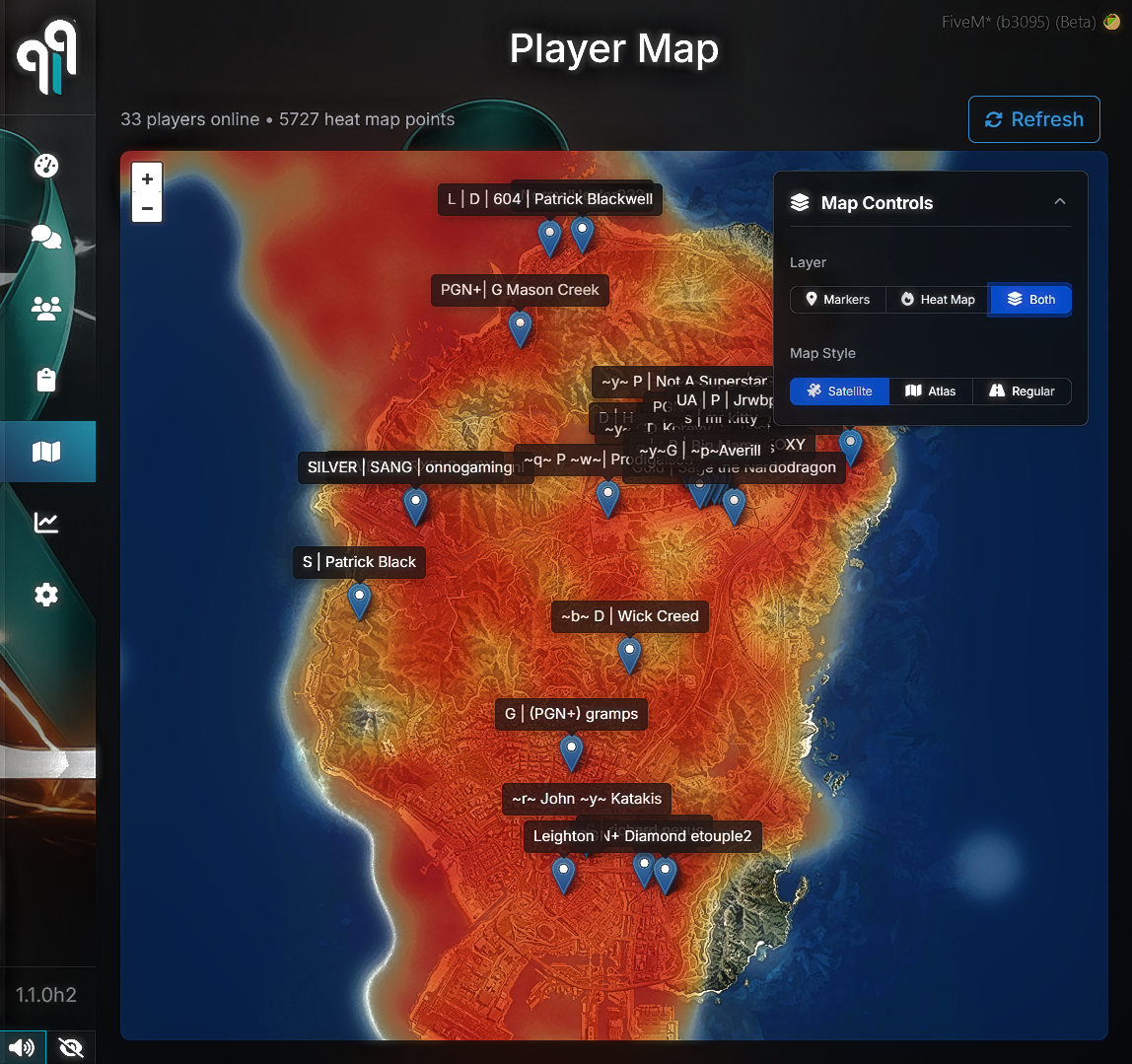
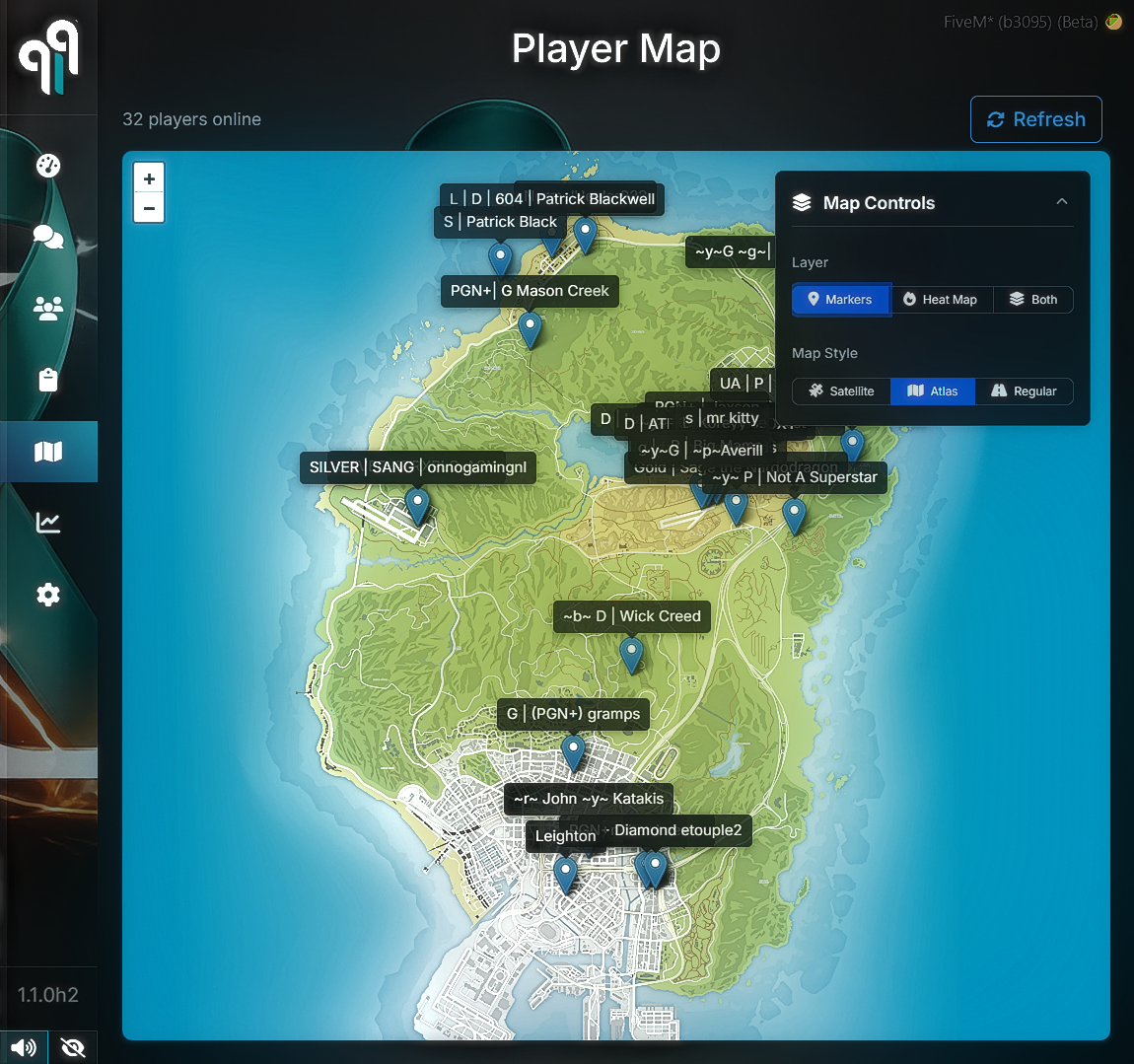
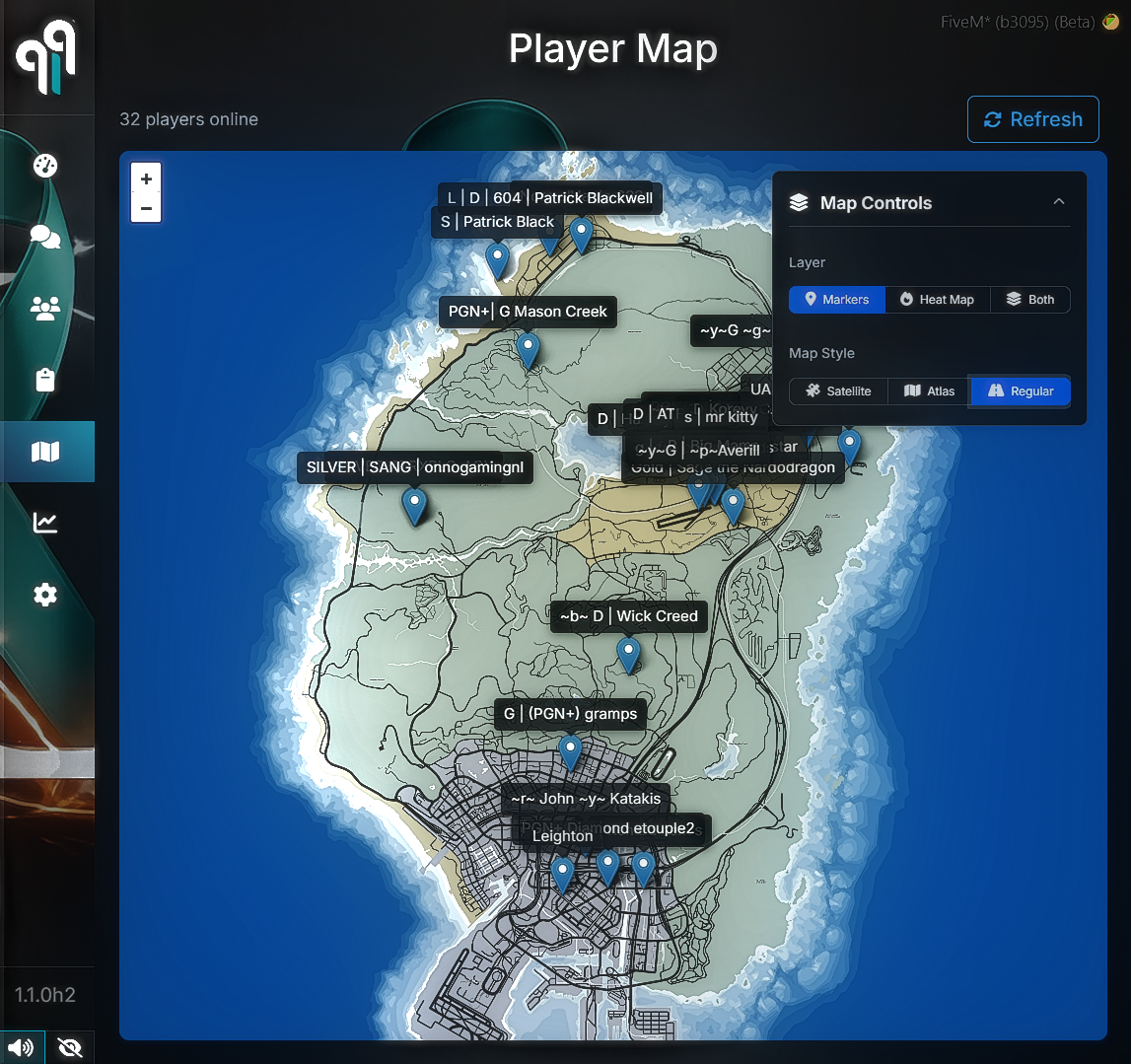
Player Map

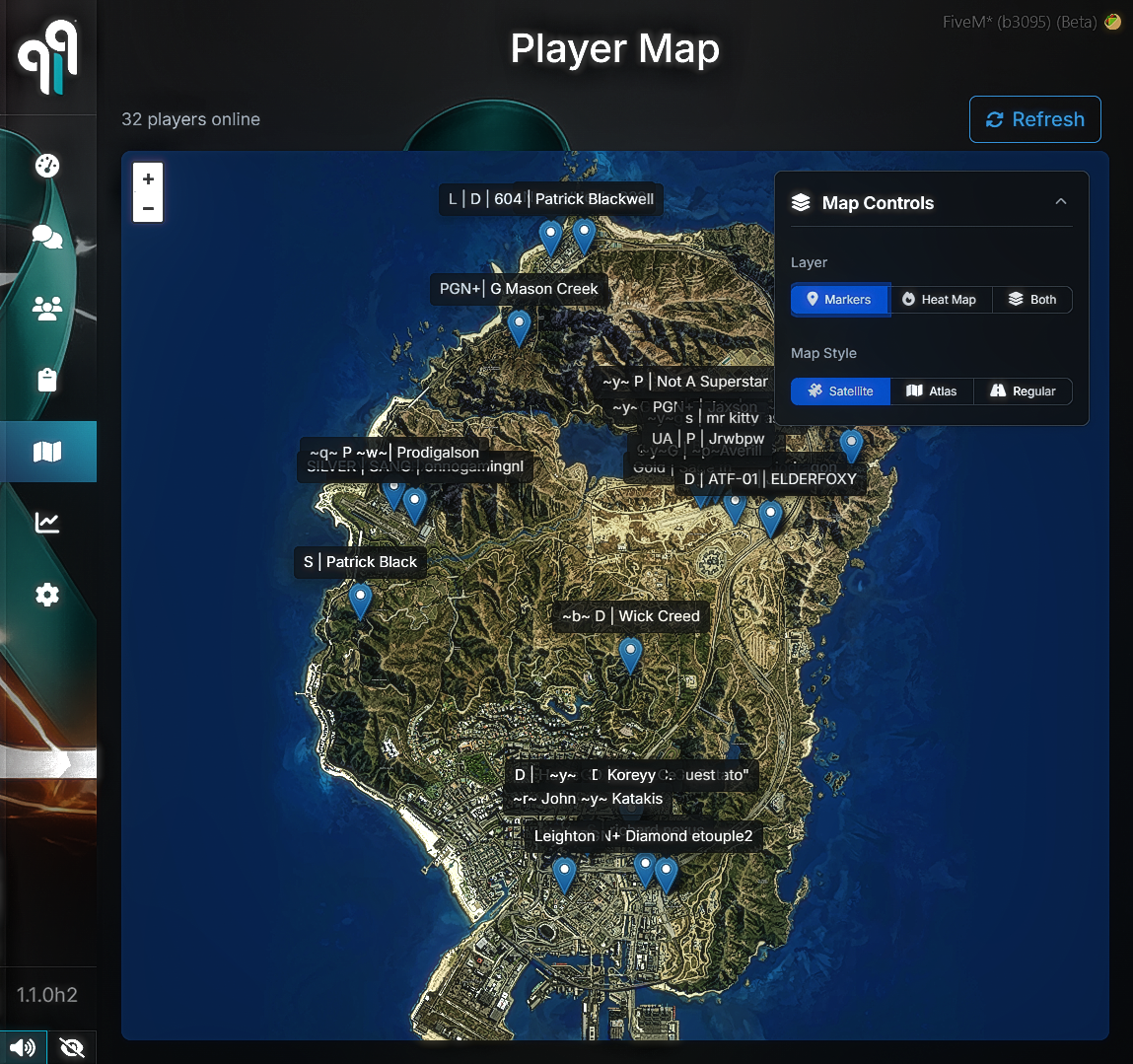
This page shows the location of all players.

Map Controls

Layers:

  • Markers
  • Heat Map
  • Both

Map Style:

  • Satellite
  • Atlas
  • Regular (base game)
Player map screenshot one Player map screenshot two
Player map screenshot three Player map screenshot four Player map screenshot five

Analytics

This page provides server analytics and player activity insights. (not relevant but can be useful)

Overview Cards

  • Total Characters
  • Unique Players
  • New Players This Week
  • Total Items
  • Total Wealth
  • Total Vehicles

Player Count & Activity Statistics

  • Current Players
  • 24h Average
  • 24h Peak
  • Weekly Average
  • Player Count - Last 24 Hours graph

New Players This Week

  • Shows the most recent new players for the current week

Wealth Leaderboard

  • Rank
  • Character
  • Cash
  • Bank
  • Total

Settings

Here advisors can customize their 919 menu layout and behavior to match their preference.

Settings Options

  • Language: Select your preferred language for the panel.
  • Interface Layout: Choose which side of the screen the admin panel appears on.
  • Font Family: Set the font used by the menu UI.
  • Text Size: Control text scaling for readability or compact view.
  • Show Action Type Labels: Toggle category labels shown on actions.
  • Enable UI Sounds: Toggle interface sound effects on or off.
  • See-Through Mode: Reduce panel opacity to better see gameplay behind it.
  • Background Type: Choose the background mode used by the menu.
  • Custom Image: Set a custom image URL for the panel background.

Notice: Misuse of any options within the menu can lead to disciplinary action. Do not abuse these features.